What happens when a clinician logs into the EHR and finds dozens of patient messages, lab alerts, and refill requests waiting for review?
For many healthcare organizations, this daily reality revolves around the Epic In Basket. Understanding how this messaging system works is essential for improving provider workflows, reducing message overload, and keeping clinical communication organized inside the Epic EHR.
I. Epic In Basket Explained: What It Is and Why It Exists
What happens when a physician logs into the Epic EHR on Monday morning and finds dozens of unread notifications waiting in their Epic In Basket?
Lab alerts appear. Patients send portal messages overnight. Pharmacies request prescription refills. Nurses route care coordination questions. Every notification represents a clinical task that requires attention.
The Epic In Basket exists to organize this constant stream of communication inside the Epic EHR.
Healthcare communication used to rely on fragmented tools such as pagers, phone calls, and email. Important updates about patient care often arrived through disconnected systems, making it difficult for clinicians to track information efficiently.
Electronic health records changed this model.
Modern EHR platforms introduced structured communication systems designed specifically for clinical workflows. Instead of managing messages outside the clinical system, providers could review, respond to, and document communication within the patient record.
In Epic environments, the Epic messaging system centers around the Epic In Basket.
The in-basket serves as a digital hub where clinicians receive and manage notifications for patient care, administrative tasks, and internal team communication. Messages generated across the Epic EHR environment are routed to the appropriate provider, department, or care team member.
These messages are not just informational alerts. Most require action.
Providers may need to review diagnostic results, respond to patient inquiries, approve medication refills, or coordinate care with other clinicians. Each task appears inside the Epic In Basket, allowing providers to manage communication within the same environment where they document patient care.
As digital health adoption grows, message volume inside EHR systems continues to increase.
Message overload inside EHR systems has become one of the most significant contributors to clinician burnout.
For healthcare leaders responsible for Epic provider workflows, understanding how the Epic In Basket operates is critical. When configured effectively, it improves communication, reduces workflow fragmentation, and supports coordinated care delivery.
When poorly configured, it can overwhelm clinicians with unnecessary notifications.
The Epic In Basket serves as the communication command center inside the Epic EHR.
A. Definition of Epic In Basket
The Epic In Basket is a secure internal messaging and task-management system embedded directly within the Epic EHR.
It acts as the central location where clinicians receive and manage communication related to patient care. Unlike external messaging platforms, the Epic In Basket connects each message to the clinical event that generated it.
Messages are linked to patient charts, orders, and documentation workflows, allowing clinicians to move directly from reviewing a message to taking clinical action.
Common activities handled through the Epic In Basket include:
- Reviewing laboratory and imaging results tied to patient records
- Responding to patient portal messages submitted through MyChart
- Processing prescription refill requests from pharmacies
- Managing referral notifications and follow-up tasks
- Coordinating care with nurses and other clinicians
Because every message is tied to the patient record, clinicians can quickly access the clinical context needed to make decisions.
B. What Makes It Different From Regular Messaging Systems
At a glance, the Epic In Basket may resemble an email inbox. Messages arrive, clinicians open them, and actions can be taken.
However, the functionality is fundamentally different.
Traditional messaging systems exist outside clinical workflows. Emails or text messages typically contain information but are not directly connected to patient charts or clinical processes.
The Epic messaging system operates within the Epic EHR, meaning communication is tightly integrated with clinical tasks.
When clinicians open a message in their in basket, they can immediately:
- Access the associated patient chart
- Review relevant lab results or documentation
- Place orders or prescriptions
- Route messages to another care team member
Additional advantages include:
- secure communication within the EHR environment
- automatic documentation of clinical messaging
- structured routing of messages across care teams
This integration allows providers to act on information quickly without switching between systems.
C. Typical Use Cases
Clinicians interact with the Epic In Basket throughout the day as part of routine clinical operations.
A provider might begin the morning by reviewing abnormal lab results delivered to their in-basket. Each message includes links to diagnostic data inside the Epic EHR, allowing the physician to review results and determine whether follow-up care is needed.
Another common use case involves patient communication.
Patients frequently submit questions via the MyChart portal about symptoms, medications, or post-visit instructions. These messages appear through Epic clinical messaging in the provider’s Epic In Basket.
Medication management is another major workflow.
When a pharmacy submits a refill request, the notification is routed through the Epic messaging system to the prescribing clinician. The provider can approve the refill, modify the prescription, or request additional information.
Internal care coordination also occurs through the in-basket.
Care teams often send messages to discuss patient care plans, clarify instructions, or escalate clinical questions.
Typical examples include:
- Reviewing diagnostic test results
- Responding to patient portal messages
- Processing medication refill requests
- Coordinating care between nurses and physicians
Because all of these interactions occur within the Epic EHR, the Epic In Basket becomes one of the most frequently used tools in daily clinical workflows.
II. How Epic In Basket Works Inside the Epic EHR Workflow
What actually happens when a message appears in a clinician’s Epic In Basket?
Behind that simple notification is a structured workflow engine embedded within the Epic EHR. The system continuously monitors clinical events, including completed lab results, patient portal messages, medication refill requests, and care team communications.
When one of these events occurs, Epic automatically generates a message through the Epic messaging system. Routing rules determine which provider, nurse, or care team member should receive the notification.
The message then appears in the appropriate in basket, where the assigned clinician reviews it and takes action.
This tight integration enables communication and clinical decisions to occur within the same environment. Instead of switching between multiple systems, providers manage tasks directly within their Epic provider workflows.
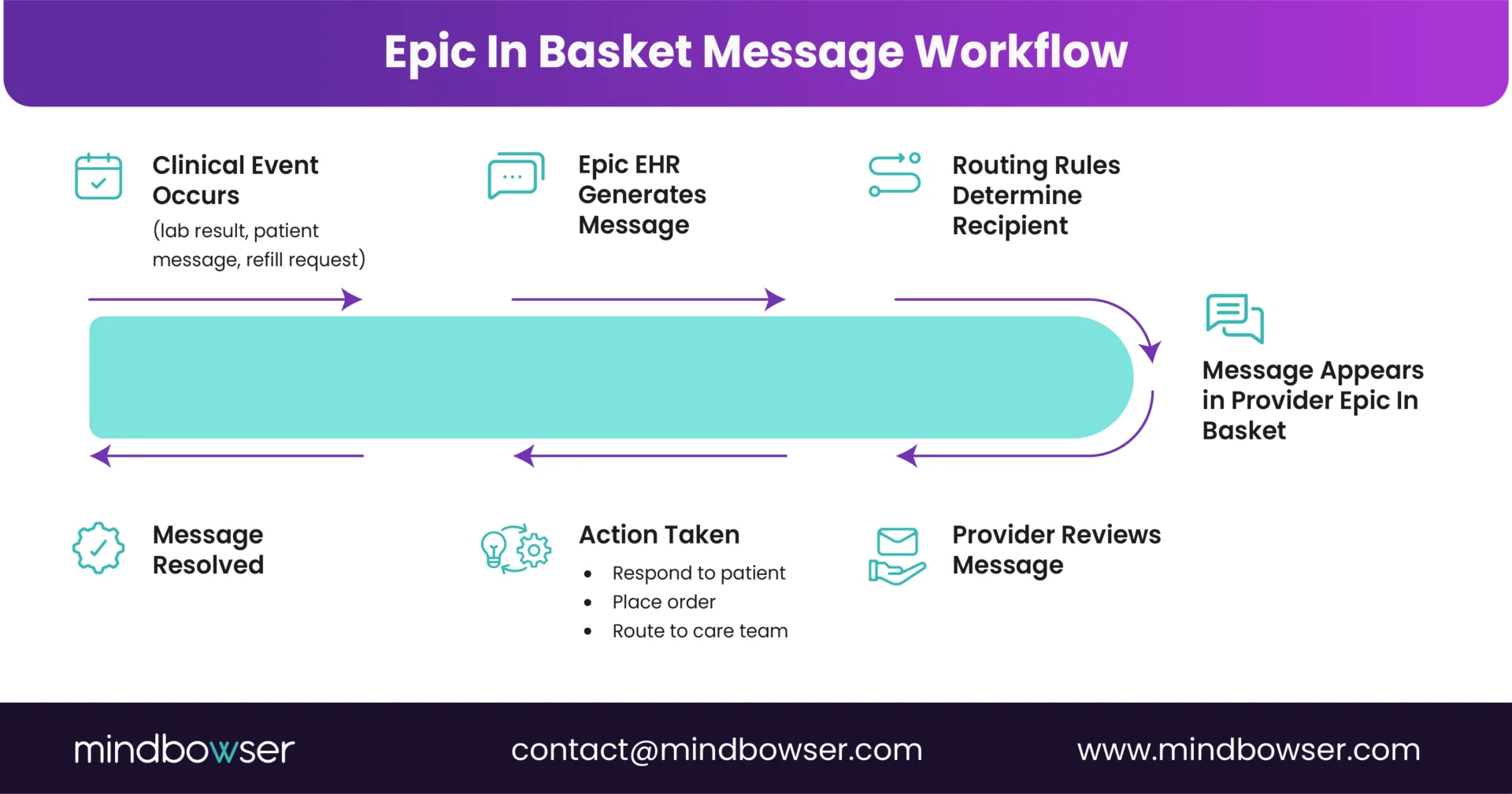
A typical Epic In Basket workflow often follows this pattern:
- A clinical event occurs inside the Epic EHR
- Epic generates a message notification
- Routing rules send the message to the correct provider or team
- The message appears in the clinician’s in basket
- The clinician reviews the message and takes action
These actions may include responding to the patient, placing orders, or routing the message to another team member.
For healthcare organizations, this process turns communication into structured operational work rather than informal messaging.
A. Where In Basket Lives in Epic?
Inside the Epic EHR, the Epic In Basket appears as a dedicated module within the clinician workspace.
Providers typically access it from the main Epic navigation menu alongside other tools such as patient charts, orders, and documentation modules. Because the in-basket is embedded in the same interface, clinicians can quickly move between messages and patient records.
When the module opens, clinicians see a list of incoming messages organized into folders and categories.
From this interface, providers can:
- Open the patient chart linked to a message
- Review lab or imaging results
- Respond to patient portal messages
- Route tasks to nurses or other providers
B. Message Sources in Epic In Basket
Messages arriving in the Epic In Basket originate from multiple systems connected to the Epic EHR.
Common message sources include:
- Patient messages submitted through the MyChart portal
- Laboratory and imaging results requiring review
- Pharmacy requests for prescription refills
- Referral updates and specialist communication
- Telephone encounters documented by clinical staff
Each message is linked to the patient record, allowing clinicians to review the relevant clinical context before responding.
C. Message Lifecycle
Every message inside the Epic In Basket follows a predictable lifecycle.
First, a clinical event triggers the creation of a message within the Epic messaging system. Epic then evaluates routing rules that determine the appropriate recipient.
The message is delivered to the provider or care team in a basket, where it remains active until the task is addressed.
Typical actions include:
- Reviewing the message and patient details
- Responding to the patient or care team
- Placing orders or approving prescriptions
- Routing the message to another clinician
Once the task is completed, the message is marked as resolved or archived.
This lifecycle allows healthcare organizations to track communication and maintain structured documentation within the Epic EHR.
III. The Core Components of the Epic In Basket Interface
When clinicians open their Epic In Basket, they are not simply looking at a list of messages. The interface is designed to help providers review, prioritize, and act on communication efficiently within the Epic EHR.
The structure of the Epic messaging system allows clinicians to scan incoming messages quickly, understand the context, and take action without navigating multiple screens. Each component of the interface plays a specific role in supporting daily workflows for Epic providers.
Understanding these components is important for health system IT leaders and CMIOs responsible for optimizing EHR usability. Small configuration changes in how the Epic In Basket is structured can significantly influence how quickly clinicians process messages.
A. Folder System
The Epic In Basket organizes messages into folders, categorizing notifications by type. This structure helps clinicians quickly identify which items require attention.
Typical folders in the in basket include:
- Results notifications for lab and imaging reports
- Patient advice requests submitted through MyChart
- Medication refill requests from pharmacies
- Referral updates and specialist responses
- Staff communication messages from nurses or care coordinators
Folders allow providers to process messages in a structured order rather than scanning through a single unorganized inbox.
Additional configuration options may include:
- priority message folders
- department-specific routing folders
- automated categorization rules
These organizational tools help reduce cognitive load for clinicians reviewing large volumes of messages.
B. Message List Panel
The message list panel displays all messages within the selected Epic In Basket folder. Each message entry provides key information that allows clinicians to triage tasks quickly.
Typical information shown in the message list includes:
- Patient name and identifying details
- Message types such as results, refill requests, or patient messages
- Time and date the message was generated
- Sender or source of the message
This overview allows clinicians to identify urgent messages or tasks that require immediate attention.
For example, a provider reviewing the list might quickly spot abnormal lab results or an urgent patient request that needs to be addressed first.
C. Message Viewer
When clinicians open a message, the Epic In Basket message viewer displays the full communication along with relevant patient context.
The viewer typically includes:
- The message content or notification details
- Links to the patient chart inside the Epic EHR
- Associated clinical data, such as lab results or medication lists
- Documentation history related to the message
This integration allows providers to evaluate the message within the full clinical picture before making decisions.
D. Action Tools
The Epic messaging system also provides action tools that allow clinicians to resolve messages directly from the Epic In Basket.
Instead of navigating to separate modules, providers can perform clinical tasks from the message interface.
Common actions include:
- Replying to patient or staff messages
- Routing the message to another care team member
- Approving or modifying medication refill requests
- Opening the patient chart for deeper review
- Placing follow-up orders or scheduling actions
These action tools turn the Epic In Basket into an operational control center for daily clinical communication.
For healthcare organizations optimizing Epic provider workflows, ensuring that these actions require minimal clicks can significantly improve clinician efficiency.
IV. Types of Messages Managed Through Epic In Basket
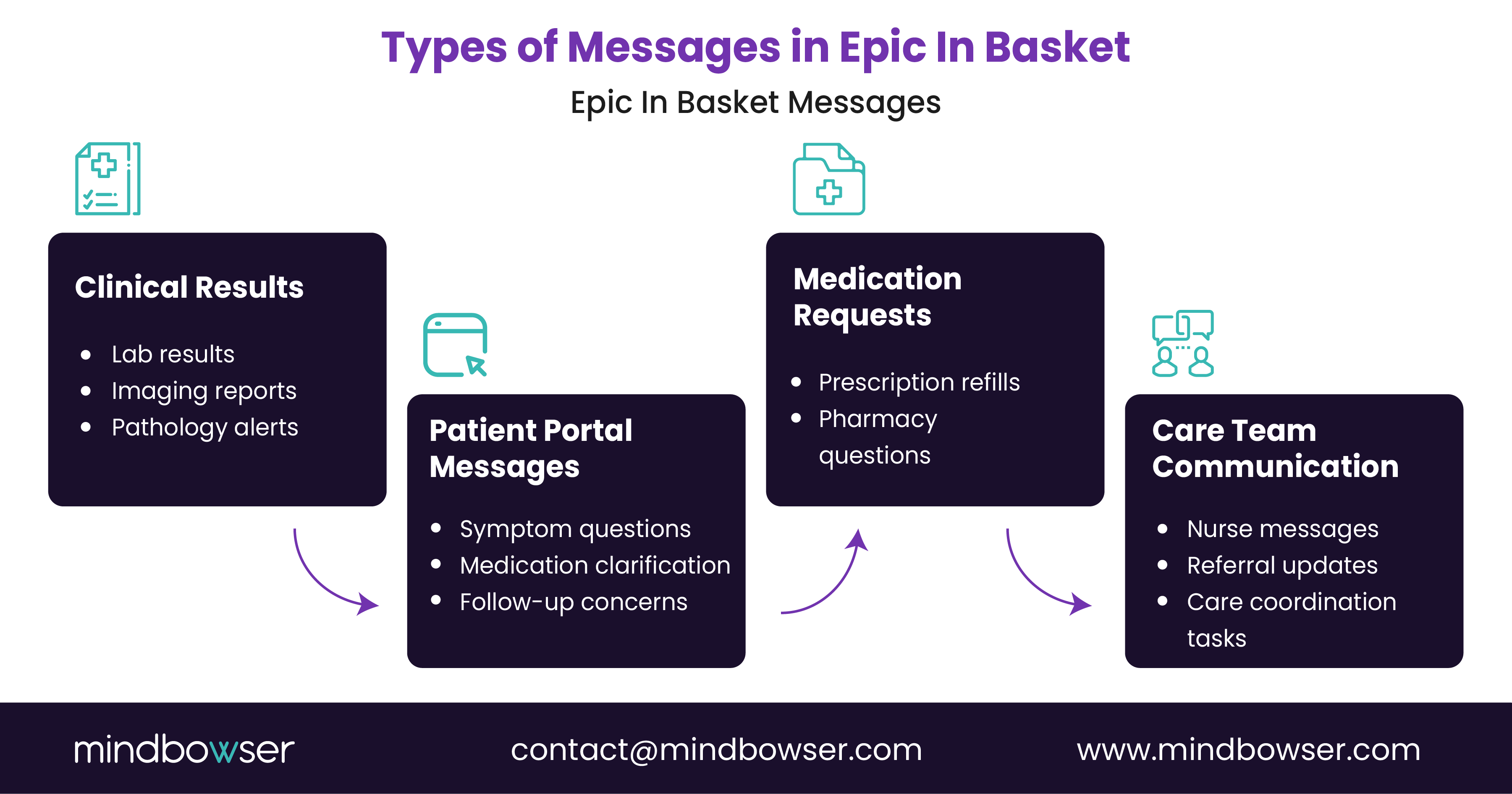
The Epic In Basket receives messages from many clinical and operational sources across the Epic EHR ecosystem. Each message type represents a different workflow that requires review, response, or follow-up.
For clinicians, the in-basket functions as the operational center where these communication streams converge. For health systems managing Epic provider workflows, understanding these message categories is essential for designing efficient routing rules and reducing unnecessary provider workload.
A. Clinical Results Messages
One of the most common notifications in the Epic In Basket involves diagnostic results.
When laboratories or imaging systems finalize test results, Epic automatically generates a message that alerts the ordering provider. These result notifications ensure that clinicians review critical findings promptly.
Typical result-related messages include:
- Laboratory test results that require provider acknowledgment
- Radiology and imaging reports linked to patient studies
- Pathology reports requiring follow-up review
Providers receiving these messages can open the patient’s chart directly in the Epic messaging system to review results and determine next steps.
B. Medication Refill Requests
Medication refill management is another high-volume workflow handled through the Epic In Basket.
When a patient requests a prescription refill through a pharmacy or the patient portal, the request is routed through the Epic messaging system to the prescribing provider.
Clinicians reviewing refill requests may:
- Approve the refill as requested
- Modify dosage or prescription instructions
- Deny the request and provide follow-up guidance
- Request an appointment before authorizing the refill
Efficient refill workflows are essential for maintaining medication adherence while preventing unnecessary provider workload.
C. Patient Advice Requests
Patient communication via the MyChart portal accounts for another significant portion of Epic In Basket messages.
Patients frequently use the portal to contact their care teams regarding symptoms, medication questions, or post-visit instructions. These messages appear through Epic clinical messaging within the provider’s in-basket.
Typical patient advice messages include:
- Questions about symptoms or treatment plans
- Requests for clarification about medications
- Follow-up questions after appointments
- Updates on ongoing health concerns
Because these communications occur inside the Epic EHR, clinicians can review patient records before responding.
D. Referral and Order Notifications
The Epic In Basket also supports coordination between primary care providers and specialists.
Referral notifications inform clinicians when patients are scheduled to see specialists or when consultation results are available. Order-related notifications may also alert providers when follow-up actions are needed.
Examples include:
- Updates on specialist referral scheduling
- Notifications that consultation notes are available
- Alerts related to incomplete orders or follow-up actions
E. Staff Communication Messages
Internal care team communication is another key use of the Epic messaging system.
Nurses, care managers, and administrative staff often route questions or updates to physicians through the Epic In Basket. This communication helps coordinate patient care while keeping discussions connected to the patient record.
Typical internal messages include:
- Care coordination questions from nursing staff
- Documentation clarification requests
- Follow-up instructions for patient outreach
By managing these interactions within the Epic EHR, the Epic In Basket keeps communication traceable and integrated with clinical workflows.
V. The Epic In Basket Challenge: Message Overload and Clinician Burnout
The Epic In Basket was designed to improve clinical communication. Yet for many healthcare organizations, it has also become one of the biggest sources of provider workload.
As digital health adoption increases, message volume inside the Epic EHR continues to grow. Patient portals, automated alerts, pharmacy requests, and care coordination messages all feed into the same in-basket.
For clinicians, this can quickly create an overwhelming stream of tasks.
Many providers report spending significant time outside scheduled clinic hours reviewing Epic clinical messaging notifications. This after-hours work has become commonly known as “pajama time,” where physicians log back into the EHR at night to clear their Epic In Basket.
A. Rising Volume of Clinical Messages
Several trends are driving the rapid growth of Epic’s In Basket message volume.
Healthcare organizations have expanded patient engagement tools, particularly portals like MyChart. As more patients communicate digitally with their care teams, the number of portal messages continues to increase.
Common drivers of message growth include:
- Increased patient portal adoption
- Automated notifications generated by the Epic EHR
- Expanded digital prescription refill workflows
- Greater care coordination across multidisciplinary teams
Each of these improvements enhances patient access but also adds new communication demands to clinicians’ daily Epic provider workflows.
B. Impact on Provider Productivity
High message volume inside the Epic messaging system can significantly affect clinician productivity.
Providers often experience frequent workflow interruptions when reviewing and responding to messages throughout the day. Each notification requires context switching between patient charts, documentation, and communication tasks.
Common productivity challenges include:
- Time spent reviewing non-urgent messages
- Interruptions during clinical documentation
- Delays in responding to patient questions
- Increased after-hours EHR work
Over time, these factors contribute to clinician fatigue and reduced efficiency.
C. Why Message Overload Happens
A single factor rarely causes message overload in the Epic In Basket. Instead, it typically results from workflow configuration issues and organizational practices.
Health systems often find that other members of the care team could handle many messages intended for physicians.
Common root causes include:
- Poorly configured routing rules within the Epic messaging system
- Excessive automated notifications from the Epic EHR
- Lack of team-based message triage workflows
- Limited filtering or prioritization of messages
When these issues are addressed through workflow optimization, organizations can significantly reduce unnecessary provider message volume.
For healthcare leaders, managing Epic In Basket workload has become a key strategy for improving clinician experience while maintaining efficient patient communication.
PakarPBN
A Private Blog Network (PBN) is a collection of websites that are controlled by a single individual or organization and used primarily to build backlinks to a “money site” in order to influence its ranking in search engines such as Google. The core idea behind a PBN is based on the importance of backlinks in Google’s ranking algorithm. Since Google views backlinks as signals of authority and trust, some website owners attempt to artificially create these signals through a controlled network of sites.
In a typical PBN setup, the owner acquires expired or aged domains that already have existing authority, backlinks, and history. These domains are rebuilt with new content and hosted separately, often using different IP addresses, hosting providers, themes, and ownership details to make them appear unrelated. Within the content published on these sites, links are strategically placed that point to the main website the owner wants to rank higher. By doing this, the owner attempts to pass link equity (also known as “link juice”) from the PBN sites to the target website.
The purpose of a PBN is to give the impression that the target website is naturally earning links from multiple independent sources. If done effectively, this can temporarily improve keyword rankings, increase organic visibility, and drive more traffic from search results.