GNOME extensions allow you to customize and extend the functionality of your GNOME desktop environment on Ubuntu 26.04 Resolute Raccoon. Whether you want to add a system monitor to your panel, tweak the Activities overview, or change your workflow entirely, GNOME extensions make it possible. In this tutorial, you will learn how to gnome install ubuntu 26.04 extension support, configure the browser integration connector, and manage extensions from both the graphical interface and the command line.
In this tutorial you will learn:
- How to install the GNOME Shell extension framework on Ubuntu 26.04
- How to set up browser integration for the GNOME Extensions website
- How to install GNOME extensions from the web interface and the Extension Manager app
- How to enable, disable, and remove extensions using the command line
Software Requirements
| Category | Requirements, Conventions or Software Version Used |
|---|---|
| System | Ubuntu 26.04 Resolute Raccoon |
| Software | GNOME Shell, gnome-shell-extensions, gnome-browser-connector, Extension Manager |
| Other | Privileged access to your Linux system as root or via the sudo command. An active internet connection. A compatible web browser (Firefox or Chromium-based) for the GNOME Extensions website. |
| Conventions | # – requires given linux commands to be executed with root privileges either directly as a root user or by use of sudo command$ – requires given linux commands to be executed as a regular non-privileged user |
| Step | Command/Action |
|---|---|
| 1. Install extension support | sudo apt install gnome-shell-extensions gnome-browser-connector |
| 2. Install Extension Manager (optional) | sudo apt install gnome-shell-extension-manager |
| 3. Browse and install extensions | Visit extensions.gnome.org or open Extension Manager |
| 4. Manage extensions via CLI | gnome-extensions list, gnome-extensions enable/disable UUID |
Install GNOME Shell Extensions Support on Ubuntu 26.04
Ubuntu 26.04 ships with the GNOME desktop environment by default. However, the extension framework and management tools are not fully pre-installed. Consequently, you need to install a few packages before you can start adding extensions to your desktop.
- Update the package index: Before installing any new packages, refresh the APT cache to ensure you are working with the latest package information.
$ sudo apt update
- Install the GNOME Shell extensions package: This package provides the core extension framework and includes a set of official extensions maintained by the GNOME project.
$ sudo apt install gnome-shell-extensions
This installs the extension loading mechanism into GNOME Shell and adds several useful default extensions you can enable immediately.
- Install the Extension Manager application (optional): Extension Manager is a graphical application that allows you to browse, install, and manage extensions directly from your desktop without a web browser.
$ sudo apt install gnome-shell-extension-manager
This is a convenient alternative for users who prefer a native application over the web-based approach.

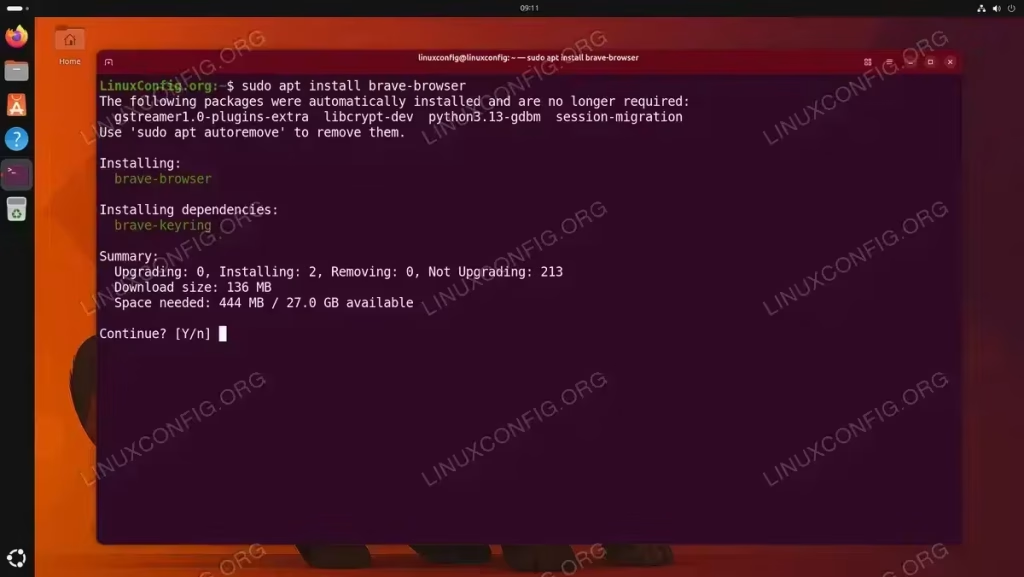
Installing GNOME Shell extensions support and Extension Manager on Ubuntu 26.04 - Verify the installation: Confirm the GNOME Shell version and that the extension framework is active.
$ gnome-shell --version
Additionally, verify that the
gnome-extensionsCLI tool is available:$ gnome-extensions version
- Log out and log back in: Some extension components require a session restart to become fully active. Log out and log back in to your GNOME session to ensure everything is properly loaded.
IMPORTANT
On Ubuntu 26.04 running Wayland (the default session), you cannot restart GNOME Shell with theAlt+F2+rmethod. You must log out and log back in for changes to take effect.

Install Browser Integration for GNOME Extensions
The GNOME Extensions website provides the largest repository of community-developed extensions. To install extensions directly from this website, you need the browser integration connector that bridges your web browser with GNOME Shell.
- Install the browser connector: The
gnome-browser-connectorpackage provides the native messaging host that allows the browser extension to communicate with GNOME Shell.$ sudo apt install gnome-browser-connector
This replaces the older
chrome-gnome-shellpackage that was used in previous Ubuntu releases.IMPORTANT
On Ubuntu 26.04, thegnome-browser-connectorpackage may already be installed by default. If so, APT will simply confirm it is already the newest version and no action is needed. - Install the browser extension: Open your web browser and navigate to extensions.gnome.org. The website will prompt you to install the GNOME Shell Integration browser add-on if it is not already installed. Click the provided link to install it from your browser’s add-on store.
INSTALLATION TIPS
If you are using Firefox (the default browser on Ubuntu 26.04), the extension is available from the Firefox Add-ons website. For Chromium-based browsers, install it from the Chrome Web Store.
The GNOME Extensions website prompts to install the browser extension with a “Continue to Installation” dialog in Firefox 
Firefox prompts for permission to launch the native connector for the GNOME Shell browser extension - Allow the WebExtension backend: After installing the browser extension, Firefox will display a permission dialog asking whether to allow it to start the WebExtension backend. This is the native connector counterpart (
org.gnome.chrome_gnome_shell) that enables the browser to communicate with GNOME Shell. Click Allow to enable the integration.

The GNOME Extensions website after successful browser integration, with the installation banner no longer displayed 
The Apps Menu extension enabled via the toggle switch on the GNOME Extensions website - Verify the browser integration: After allowing the backend, reload the GNOME Extensions website. The banner message asking you to install the GNOME Shell integration browser extension should disappear after the page refresh. This is a solid indication that the browser integration is working correctly and your browser can communicate with GNOME Shell.

After refreshing the page, the installation banner is gone, confirming browser integration is active
Install Extensions from the GNOME Extensions Website on Ubuntu 26.04
With browser integration configured, you can now browse and install extensions directly from the web. This method is the most popular way to gnome install ubuntu 26.04 extensions because it provides a searchable catalog with user reviews and compatibility information. In this example, we will install the Apps Menu extension, which adds a category-based application menu to your GNOME top panel.
- Browse available extensions: Navigate to extensions.gnome.org and use the search bar or browse categories to find an extension you want to install. For this example, search for “Apps Menu”.
- Install the extension: On the extension’s page, click the toggle switch to turn it ON. A confirmation dialog will appear asking whether you want to install and enable the extension. Click Install to proceed.

The Download section on the GNOME Extensions website with Shell version and Extension version dropdown menus - Verify the extension is active: Once installed, the Apps Menu will appear in your GNOME top panel. You can also verify using the command line:
$ gnome-extensions list --enabled
The output should include the Apps Menu extension:
[email protected]
[email protected]
[email protected]
[email protected]
[email protected]
[email protected]
[email protected]
[email protected]

IMPORTANT
Understanding the version dropdowns: When visiting an extension’s page on the GNOME Extensions website, you may notice a Download section with two dropdown menus. The first dropdown is the Shell version, which corresponds to your GNOME Shell version (check yours with gnome-shell --version). The second dropdown is the Extension version, which lists the available releases of that extension for your selected Shell version. Always choose the latest extension version available for your Shell version. These dropdowns are primarily used for manual downloads; when using the browser toggle switch, the correct version is selected automatically.
Install Extensions Using Extension Manager on Ubuntu 26.04
The Extension Manager application provides a native desktop alternative to the GNOME Extensions website. It allows you to browse, install, and manage extensions without opening a web browser. This is a convenient option if you prefer a dedicated application for managing your GNOME extensions.
- Launch Extension Manager: Open Extension Manager from the Activities overview by searching for “Extension Manager”, or launch it from the terminal:
$ extension-manager
- Browse and install extensions: Use the Browse tab to search for extensions by name or keyword. Click on an extension to view its details, and then click Install to add it to your system. The application handles version compatibility automatically.
- Manage installed extensions: Switch to the Installed tab to see all your installed extensions. From here, you can enable or disable extensions with toggle switches, access extension settings, or remove extensions entirely.

Manage Installed GNOME Extensions on Ubuntu 26.04
Once you have installed several extensions, you may want to enable, disable, or remove them. Ubuntu 26.04 provides multiple ways to manage your GNOME extensions.
Using the Extensions Application
GNOME ships with a built-in Extensions application that provides a simple interface for managing installed extensions. You can launch it from the Activities overview by searching for “Extensions” or from the terminal:
$ gnome-extensions-app
This application displays all installed extensions with toggle switches to enable or disable each one. It also provides access to individual extension settings where available.
Using GNOME Tweaks
GNOME Tweaks also provides an Extensions tab where you can toggle extensions on and off. This is a convenient option if you already use Tweaks for other desktop customizations.
Using the Command Line
The gnome-extensions CLI provides comprehensive management capabilities. This is particularly useful for scripting and automation. The following examples demonstrate common management tasks using the Apps Menu extension.
To list all installed extensions:
$ gnome-extensions list
[email protected]
[email protected]
[email protected]
[email protected]
[email protected]
[email protected]
[email protected]
[email protected]
To disable an extension:
$ gnome-extensions disable [email protected]
To enable an extension:
$ gnome-extensions enable [email protected]
To view detailed information about an extension:
$ gnome-extensions info [email protected]
To completely remove an extension from your system:
$ gnome-extensions uninstall [email protected]
To list only enabled or disabled extensions:
$ gnome-extensions list --enabled
$ gnome-extensions list --disabled
INSTALLATION TIPS
Disabling an extension does not remove it from your system. Use the uninstall subcommand to completely remove an extension and its files. Note that system-wide extensions installed via APT packages cannot be uninstalled with this command; use sudo apt remove instead.
Conclusion
You have successfully set up GNOME extension support on your Ubuntu 26.04 system. You now know how to install the necessary framework, set up browser integration, and manage extensions from the GNOME Extensions website, the Extension Manager application, and the command line. GNOME extensions are a powerful way to tailor your desktop experience to your specific workflow and preferences. Therefore, explore the vast catalog available at extensions.gnome.org to find extensions that enhance your productivity.
Frequently Asked Questions
- How do I check which GNOME Shell version is running on Ubuntu 26.04? Run
gnome-shell --versionin the terminal. This information is important because extensions must be compatible with your specific GNOME Shell version to function correctly. You will also need this version number when using the manual download dropdowns on the GNOME Extensions website. - Why is my extension not working after installation? On Ubuntu 26.04 with Wayland (the default session), you need to log out and log back in after installing a new extension. Additionally, verify that the extension is compatible with your GNOME Shell version by checking the extension’s page on extensions.gnome.org.
- Where are GNOME extensions stored on Ubuntu 26.04? User-installed extensions are stored in
~/.local/share/gnome-shell/extensions/. System-wide extensions installed via APT packages are located in/usr/share/gnome-shell/extensions/. - Can I install GNOME extensions without a web browser? Yes. You can use the Extension Manager application (
gnome-shell-extension-manager) to browse and install extensions without a browser. It provides a native desktop interface for discovering, installing, and managing extensions. - How do I update GNOME extensions on Ubuntu 26.04? The GNOME Extensions website and the Extension Manager application both notify you when updates are available. Extensions installed via the browser integration are updated through the website, while Extension Manager handles updates for extensions installed through its interface.
PakarPBN
A Private Blog Network (PBN) is a collection of websites that are controlled by a single individual or organization and used primarily to build backlinks to a “money site” in order to influence its ranking in search engines such as Google. The core idea behind a PBN is based on the importance of backlinks in Google’s ranking algorithm. Since Google views backlinks as signals of authority and trust, some website owners attempt to artificially create these signals through a controlled network of sites.
In a typical PBN setup, the owner acquires expired or aged domains that already have existing authority, backlinks, and history. These domains are rebuilt with new content and hosted separately, often using different IP addresses, hosting providers, themes, and ownership details to make them appear unrelated. Within the content published on these sites, links are strategically placed that point to the main website the owner wants to rank higher. By doing this, the owner attempts to pass link equity (also known as “link juice”) from the PBN sites to the target website.
The purpose of a PBN is to give the impression that the target website is naturally earning links from multiple independent sources. If done effectively, this can temporarily improve keyword rankings, increase organic visibility, and drive more traffic from search results.