This tutorial explains how to install Brave Browser on Ubuntu 26.04 Resolute Raccoon. Brave is a privacy-focused, Chromium-based web browser that blocks ads and trackers by default, offering faster browsing and enhanced security. We will walk through adding the official Brave APT repository, installing the browser, and managing updates and removal on your Ubuntu 26.04 system.
In this tutorial you will learn:
- How to add the official Brave GPG key and APT repository
- How to install Brave Browser on Ubuntu 26.04
- How to launch and verify the installation
- How to update and completely remove Brave Browser
[IMAGE PLACEHOLDER: Header image – abstract illustration representing Brave Browser installation on Ubuntu Linux]
Software Requirements
| Category | Requirements, Conventions or Software Version Used |
|---|---|
| System | Ubuntu 26.04 Resolute Raccoon |
| Software | Brave Browser (latest stable), curl |
| Other | Privileged access to your Linux system as root or via the sudo command. An active internet connection is required to download packages. |
| Conventions | # – requires given linux commands to be executed with root privileges either directly as a root user or by use of sudo command$ – requires given linux commands to be executed as a regular non-privileged user |
brave-browser package.
| Step | Command/Action |
|---|---|
| 1. Download Brave GPG key | $ sudo curl -fsSLo /usr/share/keyrings/brave-browser-archive-keyring.gpg |
| 2. Add Brave repository | $ echo "deb [signed-by=/usr/share/keyrings/brave-browser-archive-keyring.gpg] stable main" | sudo tee /etc/apt/sources.list.d/brave-browser-release.list |
| 3. Install Brave | $ sudo apt update && sudo apt install brave-browser |
WHY USE THE APT REPOSITORY INSTEAD OF FLATPAK?
This tutorial uses the official Brave APT repository, which is maintained directly by Brave Software. While a community-maintained Flatpak package exists on Flathub, the APT method is preferred for several reasons: the APT repository delivers security patches immediately as Brave releases them, the packages are signed and verified by Brave Software, and the native installation provides better system integration with default browser registration, file associations, and desktop theming. Additionally, a native APT install avoids the extra disk space and memory overhead of the Flatpak runtime.
Installing Brave Browser on Ubuntu 26.04
Brave Browser is not included in the default Ubuntu repositories. Therefore, you need to add the official Brave APT repository before installation. This process involves downloading the Brave GPG signing key and configuring the repository source. Follow the steps below to install Brave Browser on your Ubuntu 26.04 system.
- Download the Brave GPG key: The GPG key verifies the authenticity of the packages you download from the Brave repository. Use
curlto download it to the system keyring directory:$ sudo curl -fsSLo /usr/share/keyrings/brave-browser-archive-keyring.gpg
This command downloads the signing key and stores it in
/usr/share/keyrings/which is the recommended location for third-party repository keys on modern Ubuntu systems. - Add the Brave APT repository: Next, create a repository source file that points to the official Brave stable channel:
$ echo "deb [signed-by=/usr/share/keyrings/brave-browser-archive-keyring.gpg] stable main" | sudo tee /etc/apt/sources.list.d/brave-browser-release.list
The
signed-bydirective ensures that only packages signed with the Brave GPG key are accepted from this repository. - Update package lists and install Brave: Now refresh the package index to include the newly added repository and install the browser:
$ sudo apt update
$ sudo apt install brave-browser
APT will download and install Brave Browser along with any required dependencies.
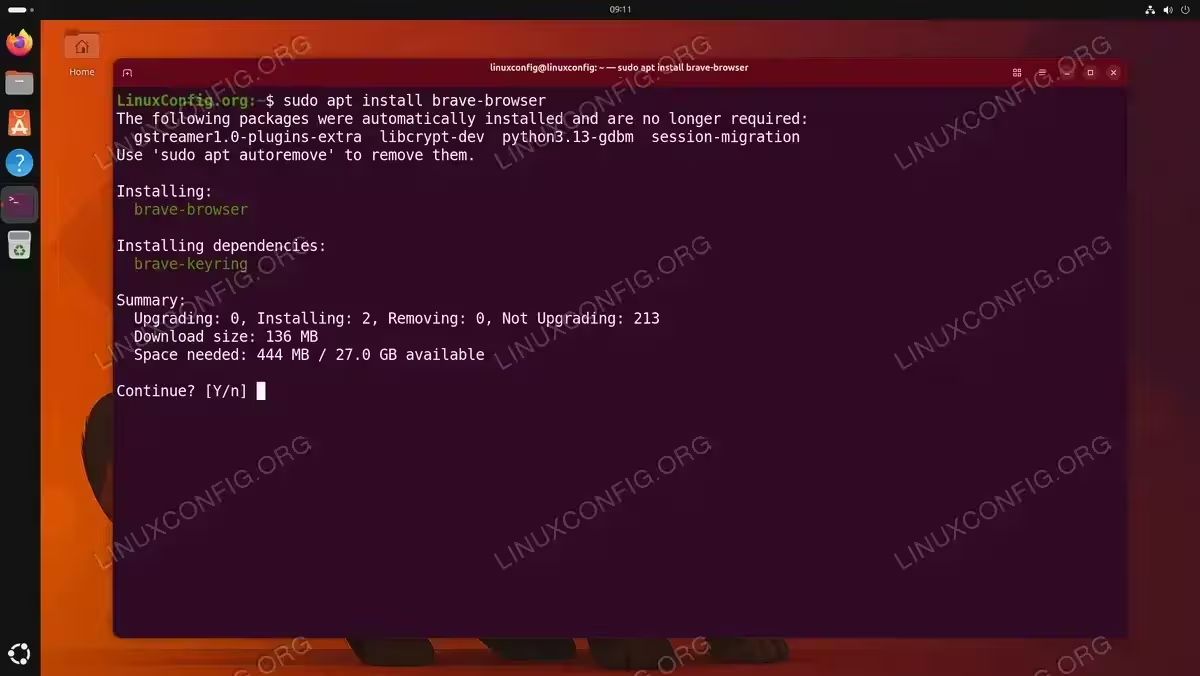
Installing the brave-browser package along with its brave-keyring dependency
Launching Brave Browser
Once the installation is complete, you can launch Brave Browser either from the terminal or from the GNOME Activities menu.
To start Brave from the command line, run:
$ brave-browser
The installation provides two commands: brave-browser and brave-browser-stable. Both launch the same browser. The brave-browser command is a symlink managed through the Debian alternatives system, while brave-browser-stable points directly to the actual binary at /opt/brave.com/brave/brave-browser. You can use either command interchangeably.
Alternatively, press the Super key to open Activities, type “Brave” in the search bar, and click the Brave Browser icon to launch it.
On the first launch, Brave presents a welcome screen where you can import bookmarks from other browsers, set Brave as your default browser, and configure initial privacy settings such as Brave Shields.

You can verify the installed version by navigating to brave://settings/help in the address bar or by running:
$ brave-browser --version

Updating and Removing Brave Browser
Since Brave is installed through its official APT repository, it receives updates automatically whenever you update your system packages. To manually check for and apply updates, run:
$ sudo apt update && sudo apt upgrade brave-browser
If you decide to remove Brave Browser from your Ubuntu 26.04 system, you can uninstall it and clean up the repository configuration in the following steps:
- Remove the Brave package: Uninstall Brave Browser and remove its configuration files:
$ sudo apt purge brave-browser
- Remove the repository and GPG key: Clean up the repository source file and signing key to prevent stale entries in your APT configuration:
$ sudo rm /etc/apt/sources.list.d/brave-browser-release.list
$ sudo rm /usr/share/keyrings/brave-browser-archive-keyring.gpg
- Update package lists: Refresh APT so the removed repository is no longer referenced:
$ sudo apt update
COMPLETED
Brave Browser has been successfully removed from your Ubuntu 26.04 system, along with its APT repository and signing key.
Conclusion
In this tutorial, you learned how to install Brave Browser on Ubuntu 26.04 Resolute Raccoon using the official Brave APT repository. The process involved adding the GPG signing key, configuring the repository source, and installing the browser through APT. You also learned how to launch Brave, verify the installed version, and completely remove the browser if needed. Because Brave is installed from its official repository, it will stay up to date alongside your regular system updates. For more information about Brave Browser features and configuration, visit the official Brave for Linux page.
Frequently Asked Questions
- Is Brave Browser available in the default Ubuntu 26.04 repositories? No, Brave is not included in the official Ubuntu repositories. You need to add the Brave APT repository manually as shown in this tutorial. This ensures you receive the latest stable version directly from the Brave team.
- Can I install Brave Browser using Snap or Flatpak on Ubuntu 26.04? While community-maintained Snap or Flatpak packages may exist, the recommended method is to use the official APT repository. The Flatpak version on Flathub is not maintained by Brave Software, so updates may lag behind official releases, and security patches may not arrive as quickly. Additionally, the native APT installation provides better desktop integration and avoids the overhead of the Flatpak runtime.
- Does Brave Browser update automatically on Ubuntu 26.04? Yes, once installed through the official APT repository, Brave updates automatically whenever you run
sudo apt update && sudo apt upgrade. You can also enable automatic security updates to keep all your packages current without manual intervention. - What is the difference between Brave Browser and Google Chrome on Ubuntu? Both browsers are based on Chromium, but Brave includes built-in ad and tracker blocking through Brave Shields. Consequently, Brave generally offers faster page loading and improved privacy out of the box compared to Chrome, without requiring additional extensions.
PakarPBN
A Private Blog Network (PBN) is a collection of websites that are controlled by a single individual or organization and used primarily to build backlinks to a “money site” in order to influence its ranking in search engines such as Google. The core idea behind a PBN is based on the importance of backlinks in Google’s ranking algorithm. Since Google views backlinks as signals of authority and trust, some website owners attempt to artificially create these signals through a controlled network of sites.
In a typical PBN setup, the owner acquires expired or aged domains that already have existing authority, backlinks, and history. These domains are rebuilt with new content and hosted separately, often using different IP addresses, hosting providers, themes, and ownership details to make them appear unrelated. Within the content published on these sites, links are strategically placed that point to the main website the owner wants to rank higher. By doing this, the owner attempts to pass link equity (also known as “link juice”) from the PBN sites to the target website.
The purpose of a PBN is to give the impression that the target website is naturally earning links from multiple independent sources. If done effectively, this can temporarily improve keyword rankings, increase organic visibility, and drive more traffic from search results.